Showing posts with label q1. Show all posts

Friday, May 18, 2007

UMPC Triumphs over Pen and Paper...at least this once today

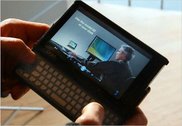
I hit a milestone today. I actually chose my UMPC over a nearby pen and paper. I was at client's store today overseeing the beta-launch of a new order management system. The store manager was using the system and suddenly offered up a great idea for a UI change. My instinct was too quickly locate a pen and paper to jot the thought down. My eyes caught a pen across the cash wrap but there was no paper in site. There were a few receipts but I thought better of confiscating any of those. In the moment, I realized that it would be both faster and better if I simply brought the Q1 out of standby and jotted the notes down in OneNote. And that's exactly what I did.

The significance of this only hit me later. Here was a perfect example of how the UMPC actually won out over a tried and true method of note taking. It occured to me that in order to win this particular battle, the UMPC had to meet the following criteria:

  1. Physically, the Q1 had to be more readily available than a pen and paper.
  2. The Q1 had to adapt to my environment (e.g. I was standing in a crowded and busy cash wrap.)
  3. The Q1 had to snap on from standby quickly.
  4. A method of text entry had to be immediately available (OneNote's side note).
  5. Text recognition had to be accurate and speedy.

In previous times, one or all of the requirements would not have been available. Either the device would have been too large to have warranted my picking it up as I headed over to the store, or the text recognition would have been too inaccurate. For me however, today was the first time that all these elements came together to create a successful note taking experience.

There were some rough spots and I want to capture those now:

  1. The cash wrap area was small and the counters were full with merchandise. This necessitated that I hold the Q1 in one hand and write with the other. While the Q1 is small, it is a bit too large to accomplish this task naturally.
  2. Hibernation. While my Q1 was in standby it could have easily gone into hibernation mode in which case the resume time would have been too slow and this use case would have failed. Lesson learned: the UMPC should be aware of its environment and usage. For example, accelerometers could tell it that it is being held. HID drivers could determine if the pen has been used recently or is being used. The UMPC could then use this information to prevent itself from going into hibernation until it was placed down again for some amount of time.
  3. OneNote defaulted to ink mode and not recognition mode. When I selected a place on the note, the TIP did not appear. This setting should be user configurable.

I'd like to end the post with the benefits of the Tablet over Paper:

  1. Because the cash wrap was crowded and busy, it necessitated that I stand and write. I would have had a difficult time trying to write down any notes on a single sheet of paper while standing. The Q1, while a bit bulky was imminently usable while standing.
  2. Because I use OneNote to take all my notes, I now have all the benefits associated with the notes being digital: they are searchable, can be integrated with Outlook Todo tasks, filed and emailed easily.
  3. I saved a tree.

Tuesday, May 1, 2007

Broke Down… Ordered the OQO 02


After some deliberation I decided to break down and buy an OQO model 02.

Now I know, I just bought my Samsung Q1… actually, between the last blog posting and this one, I purchased another Samsung Q1 but this time the Q1p which is the upgraded Pentium M processor and memory (I gave my original Q1 to my sister). In any event, I love my Q1p. Really, it is a desktop and laptop replacement and I couldn't possible hope for anything better.

So why did I buy the OQO 02? Well, for one thing I had to. The thing is just too sexy. Another reason is that… oh forget it. There is no other reason. I won't pretend to have some "really good reason" for buying something so expensive after I have just purchased another something that was a little less expensive to replace an original spur of the moment purchase of something expensive that I didn't need.

The end result is that it will be arriving sometime in the next two weeks, provided OQO meets the scheduled and promised dates to get Vista-fied OQO's out the door next week. And, this lead me to the main thrust of the posting: Given that I'm now committed to the OQO, how do I hope to use it and what does it mean to this brave new world of UMPC's?

Believe it or not I waffled for days back and forth on weather to purchase the OQO. I mean, I have an almost perfect setup now with the Samsung Q1p.

But…

The purpose of the UMPC initiative is to make computing ULTRA mobile and while the Q1p is very mobile, the OQO is half the size of the Q1p and theoretically should be that much more mobile.

By "more mobile" I mean that the thing is small enough to put in your pocket or drop in your man-purse. The Q1p just isn't that small so while I can easily carry it around the office or the house, I'm not apt to just grab it like my mobile phone when I go out. With the OQO this will theoretically happen… we'll see. If it does happen, then new use cases should pop out of the added mobility. I'm interested in these use cases and the implications they have on the hardware design of UMPCs as well as the software/solutions that might reveal themselves.

That's my first great interest.

My second interest with the OQO centers on user input: its keyboard and the active digitizer on its 5 inch screen. First on keyboards. There are two camps out there in the UMPC universe. One adheres to the strict mantra that UMPC's should be keyboardless (I'm an adherent of this camp). We believe that handwriting recognition is required and that any UMPC with a keyboard is nothing more than a smaller laptop or a glorified Blackberry/PDA in the case of the thumbboard. The other camp, the side that is wrong, believes the opposite: that all UMPC's should have keyboards or at least thumbboards. I won't try to make their argument here because I haven't bothered to try to understand it although it appears that they may be winning given that the new Samsung Q1 Ultra ultra mobile PC (that's the real name) will ship very soon and it has a split thumbboard on either side of the unit, kind of like wings. There are a lot of arguments on both sides and I won't go into the details here but I figured I should try the OQO with its keyboard/thumbboard just so I can say I own one and clobber the opposing camp with the "see, I own both and I can tell you definitively that you are wrong" argument. No one in their right mind will believe that a sane person would drop over 2 grand to acquire a gadget just to say they own one to win an argument. Brilliant.

Regarding the active digitizer and the 5 inch screen that the OQO sports: I am curious as to the ideal size of a UMPC's screen. The Samsung Q1 has a 7 inch passive digitized LCD screen. I find that screen works for me when I'm not using the Q1p with an external monitor. I can view full web pages, work on Word documents and do most of my office productivity work without considerable eye strain or unnecessary scrolling about. Will reducing the screen size to 5 inches be too small? Ah, that's the question. I don't have an answer right now however there are enough reviews out there that are praising the screen on the OQO and claim that the software interpolation it uses to scale graphics up to 1024x600 is very good and quite usable. We'll see.

Active vs. passive digitizing - another war zone. I have not taken a side here yet. For those in need of a refresher course, the Samsung Q1 uses a passive or "touch" screen. This means that anything from a pen to your elbow will work on the screen. The disadvantage is that anything from a pen to your hand will also potentially screw up handwriting recognition. Because passive digitizers don't care what touches them, you can do cool things like use your finger to point and click and drag and drop. It's a cool feature. However, that same inability to distinguish your finger from a pen means that you have to be careful when you're writing to ensure that your hand doesn't touch the screen as you're writing. Otherwise, the digitizer gets confused and starts to scribble, wildly interpreting between your pen tip and the pressure points created by your hand dragging across the screen. Needless to say handwriting recognition starts to get pretty creative with its misinterpretations at this point.

Active digitizers like that found on the OQO take care of this problem by requiring a special pen to be used when writing on the screen. This magic pen is recognized by the digitizer. It uses a magnetic field to tell the digitizer when it is close to the screen (like hovering the cursor above a button) and when it is pressed down on the screen. This means that unless your finger is generating a magnetic field, it and no other object will be recognized as an input device. Drag your hand across the screen to your heart's content while writing - the digitizer will not get confused and subsequently will not misinterpret your handwriting. Nifty. Of course the drawback to active digitizers is that since your finger isn't putting out a magnetic field, you cannot point and navigate with just your finger. The digitizer won't recognize it. Nothing will happen except you'll smudge your screen.

So I'm interested in better understanding the trade offs between these two technologies. From a user experience perspective is an active digitizer better than a passive digitizer? I don't know but I'm sure I'll form an opinion after using the OQO for awhile.

And that's it. I purchased my third UMPC but I think the purchase will yield interesting use cases and answer some important questions that are still being debated about UMPC's. Also, the OQO 02 is currently the only UMPC on the market that is truly ultra mobile (in the sense that you can just pick it up and go). I'm interested in seeing how that added mobility affects my computer usage.

I look forward to sharing my thoughts with you on this blog.

Thursday, April 19, 2007

i'm a umpc convert...

From a recent post I made at Cnet.com about an article they wrote on "Why You'll Never Buy a UMPC":


granted, i am a technophile but i converted to the umpc for a couple reasons.first, i want to simplify my life. i used to have a desktop pc. i got rid of it for a laptop. the laptop performed all the tasks i needed but gave me the ability to transport my computing needs when and where i desired. the laptop was a transportable desktop. granted, the laptop didn't have the power and expandability of a desktop but the ability to move from location to lcoation trumped those benefits of a dedicated desktop. for gameplaying, i purchased an xbox 360 and suddenly there really was no need for a desktop. i replaced my vaio latop recently for a samsung q1p and have not regretted it. the samsung q1p while not as powerful as my laptop does meet at my daily computing needs just fine and does it in a smaller, more mobile package. i have the q1p connected to my 20in sony lcd monitor. i use a bluetooth keyboard and mouse and so i have basically a desktop system in a package the size of a paperback. when i need to go to a client's office, i have pop the umpc into its leather case and go. 5 seconds. i now have a laptop as the leather organizer case has an integrated keyboard. at the client, i pop the q1p out of the organizer and take it into meetings. i take handwritten notes quickly and efficiently. when i get back to my desk at the client's office, i put the q1p back into the organizer case and use it as a laptop. so the q1p has now simplified my life by acting as my desktop, laptop and ultra mobile pen based computer. all in a smaller and lighter package.

second (and i realize this is going to sound strange but it's important to me) i am on a quest to eliminate noise from my computing experience. i hate noise that eminates from technology. i work at my home office and it's quite peaceful and quiet. i spend a lot of time on my computer. the fan noise from a desktop annoys me to no end. it's constant hum continually demands attention and let's you know "hey! i'm a computer and am comsuming lots of power. so much in fact that i need this enormous fan to cool down my cpu!". i researched a lot of laptops and settled on a sony vaio b/c it had dual cores that ran cooler and a smart power management system that controlled (and allowed the user to control) the fan speed. this greatly cut down on the ambient noise of computing. however... when the fan did kick on it could be noisey. my umpc is virtually silent all the time. when the fan does kick on it is brief and quiet and doesn't remind me that my electric meter is spinning out of control.

and that brings me to my third point (which is also questionable and will cause you to roll your eyes): power consumption and the environment. i want to do whatever i can to reduce my carbon signature on the environment. i drive a hybrid, buy only the highest rated energy star appliances and have switched all my light bulbs out for fluorenscent bulbs. an extreme, i know. in any case the power footprint of a umpc is something like an order or two or three *magnitude* difference in power requirements. my umpc has a thermal rating of something like 5 watts of power. my desktop pc had a tdp of something like 95 watts. that's a big difference that was actually reflected in my power bill which dropped significantly after i replaced my desktop pc. i like the fact that i'm using technology that has significantly reduce my daily power consumption.

i've been ranting here for awhile so i'll stop with this last point: mobility. i know, a lot of people will say that a laptop is just as mobile as a umpc but my experience has been that it is not. not nearly. think about it. a laptop has a unique design that requires it to sit open with the keyboard on a flat surface and the monitor flipped up. this means that while you can transport the thing around you are really just moving from one flat surface to another. you cannot easily use a laptop while standing or while laying on the couch or in the car or while walking about. the laptop is transportable but not truly mobile. the umpc on the other hand is both transportable and mobile. because it has no keyboard you can hold it in one hand. you can stand and use it, lie on the couch and use it, walk and use it. these things sound trivial but once you are unteathered from the desktop or table you'll find that you use the umpc more - at least i do. i enjoy actually writing in my own handwriting my blog while reclined comfortably on the couch. in the morning i drink my coffee in the kitchen while reading the news in one hand. it's natural and convenient. i don't have to drag my coffee up to my office and sit at my desk to get my morning started. the screen is not so small that it is unusable and not so big that it is unmobile. its form factor meets the needs of a new generation of mobile computing that i think people will embrace because it is where we are heading.

i believe the umpc will replace the notebook in the long term. as processors reduce in size and increase in performance and other technologies like samsung's new led screens reduce power requirements and battery technology improves, we'll find that umpcs can do everything that we need them to so and give us the benefits of truly mobile computing. current generation umpcs are just the start but if they are any indication of where things are headed then i think computing is heading in the right direction.

just my 1.5 cents.

cheers everyone,

neil

Sunday, March 11, 2007

RitePen Does Me Wrong

This is not a rant against EverNote's RitePen. EverNote is a great company that makes great products (including RitePen). This is an essay about user interfaces and UMPC's and what solutions work best and when. In case you've never used RitePen it is a simple utility that allows you to ink anywhere on the screen at any time and then automatically converts that ink to text. For anyone who has used a browser on a UMPC this potentially solves a glaring problem: inputting text into fields.

Setting up the use case: Because the screen real estate on a UMPC is mere precious than a home with a yard in San Francisco, I always surf in full screen mode.

Knowing this, here's the out of the box experience you'll go through to surf to a page:

  1. Hit F11 to exit full screen mode.
  2. Click the TIP icon in the task bar.
  3. Put the cursor focus into the URL text field.
  4. Enter a URL in TIP and hit enter.
  5. Close the TIP.
  6. Hit F11 to enter full screen mode again.

Now some will say that I should simply keep the TIP open and the screen out of full-screen at all times but this results in about 75% of the screen taken up by the TIP, browser title bar, menu bar, command bar and status bar and leaves only 25% of the screen for actual content. Not acceptable. So here's where RitePen can clear things up.

Remember that RitePen allows me to ink anywhere on the screen at anytime and automatically converts the ink strokes to text. This means the RitePen experience should ideally go something like this (remember we're already in full-screen mode):

  1. Put the cursor focus into the URL text field.
  2. Write the URL directly on the screen using RitePen's digital ink. RitePen converts the ink to text and automatically inserts the text into the URL field.
  3. Write the enter key gesture directly on the screen to start the search.

This is a much better user experience. It permits us to remain in full-screen mode and eliminate 3 steps. Basically, the RitePen use case follows the same steps we'd follow if we entered the URL using a standard keyboard for input. Only we are inking instead of typing. This is desirable from a use interface perspective.

So how did RitePen do me wrong? As they say "God is in the details" In this case the details are found in how RitePen handles errors in recognition which unfortunately I find happens more often than using the built-in TIP recognizer . The real use case went something like this:

  • Put the cursor focus into the URL text field.
  • Write the URL directly on the screen using RitePen's digital ink. RitePen converts the ink to text and automatically inserts the text into the URL field.
  • The recognized text is incorrect. A floating correction window appears with a list of alternate spellings none of which is what you wrote.
  • As you try to find the correct word from the list the popup window fades away into oblivion...
  • You are left with the incorrect URL in the URL text field so you highlight the text and write the URL again on the screen only to find it is misrecognized again but in a different way.
  • You exit full-screen mode.
  • Turnoff RitePen in the task bar.
  • Click the TIP icon in task bar to open the TIP.
  • Enter the URL and hit enter.
  • Close the TIP.
  • Enter full-screen.

The problem with RitePen is with its correction window which pops up after every recognition. Unlike TIP, there is no correcting along the way. With RitePen you write everything on the screen in one fell swoop and then pray to the recognition gods that it comes back correct. If it doesn't you're going to have to struggle with using their popup correction window.

Problems with the correction popup: First it cuts away too quickly. While this is adjustable I found it difficult to strike a balance between staying on screen long enough to click it and "pin" it down when I need it and short enough to not be a nuisance when no correction is needed. Second, it is difficult to add a delete characters. Correcting an individual character is easy but it is frustratingly difficult to add or delete a letter at the end of the word or phrase and almost impossible to do so in the middle of a word. These limitations mean you'll find yourself closing RitePen's correction window and simply trying it again or using the TIP.

The moral of the story is this: If RitePen's recognition were better you would have a great user experience... but it isn't and their correction implementation is seriously flawed leaving us with a worse use case then simply sticking with the built-in TIP.

In my next posting Ill share the ideal solution I've found for entering text in a browser.