Thursday, May 24, 2007

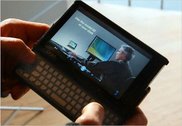
OQO Model O2 Review: Overview

There are plenty of great general and unboxing reviews of the OQO 02. This review will focus on usability, user interface and user experience aspects of the OQO 02. The review is broken down into 5 parts. Each part is a separate blog posting that will occur over the next couple weeks.

  • Form Factor: In this part of the review I talk about the physical characteristics of the OQO as they relate to usability. I'll also talk about the capacitive touch scrollers, the keyboard, thumbstick and docking dongle.

  • Pen Tablet: This part of the review will focus on the OQO's active digitizer and pen. I'll talk about what it's like to write on a 5 inch screen as well as how the OQO's VIA processor impacts handwriting recognition.

  • Desktop and Notebook Replacement: I'm using the 02 as my desktop replacement. I'll talk about what I do on a day to day basis and what my user experience is when using the 02 as a desktop replacement. Usage scenarios will include Flex development and daily usage of Microsoft Office 2007 (including OneNote 2007). I'll talk about power schemes, fan noise, CPU performance and share tips on how to get the most out of your 02.

  • 5-inch Use Cases: I'll talk about portability and compare 5-inch versus 7-inch usability and use cases. I'll share use cases that are unique to the 02.

  • Conclusion: I'll wrap up all my findings and give the OQO 02 a final score based on usability and user experience.


    If you have specific questions that you would like covered, please let me know. I'll be happy to factor those in.

Wednesday, May 23, 2007

When Size Matters

A recent poster asked why I chose to buy an OQO Model 02 over the Sony UX. I think the UX is an incredible micro-PC and Sony has done alot to promote microcomputing and UMPC's. However, the question is a fair one and I thought I'd bump up my response to this blog posting. When it comes to UMPC's, adding a fraction of an inch here and there really adds up. Read on...

The UX, while small is almost twice the volume of the OQO. At first blush it seems that the UX is roughly the same size as the OQO but in actuality it is not.

The UX dimensions are:5.91”(W) x 3.74”(H) x 1.27-1.50”(D)
The UX volume is:33.16 cubic inches
The weight of the UX is:1.2 lbs.

The OQO dimensions are:• size: 5.6"(W) x 3.3"(H) x 1.0"(D)
The OQO volume is:18.48 cubic inches
The weight of the OQO is:1 lbs.

As you can see here, the volume of the UX is 33.16 cubic inches and the OQO is 18.48 cubic inches. That's quite a bit smaller. It means that the OQO will literally fit in your pocket while the UX will not. Also, the UX weighs 20% more than the OQO.

These two factors add up. They make the UX quite mobile to be sure but not nearly as mobile as the OQO. I would not be apt to pick up the UX and just take it with me as I head out the door. While I would be with the OQO.

This is an important distinction that I think other UMPC manufacturers need to consider as they design their future UMPC form factors. If you're going to design something like the UX, you may as well scale up the screen to 7 inches like the Q1 because I'm not apt to carry it around anyways. I believe the OQO hit the right size to make the transition into a new category of mobile computing, which is why I believe it is currently the only UMPC that can address these ultra-mobile use cases.

Just my thinking though. What do you think?

Tuesday, May 22, 2007

OQO 02 Review Coming...

I have had my OQO since Saturday, about 3 days and will post a full review shortly. However, I wanted to let folks know that I am very happy with the OQO. It has delivered on its promise and met or exceeded all my expectations. It has been acting as my full-time desktop replacement (having replaced now my Samsung Q1p) for the last 3 days. I have no complaints.

I am pushing the OQO perhaps more than most users. I am a Flex developer and so my OQO is what I am doing all my development work on. That work means I am running a Flex server, and the Flex Builder Eclipse IDE for doing Flex compilations. It also means I am testing my Flex applications, known for taxing any CPU on the OQO. I have not been slowed down.

A couple quick observations (I don't want to give too much away):

  • I was really reticent about the fan noise. I am happy to report that my OQO and I have reached an understanding and fan noise is no longer a primary concern for me. I'll explain what settings I'm using to get the results I want in my full review.
  • I was really worried that the CPU wouldn't be powerful enough to carry out my daily workload demands. I was wrong.
  • I was unconvinced that I needed the built-in keyboard. I coming around to appreciate the presence of the keyboard and find myself using it more and more (I'm a pen person so this is a big deal!)
  • I was right that I would carry the unit with me more because of its diminuitive size. The OQO is truely pocketable, like no other UMPC on the market and that is quite exciting for me. I will share what new use cases I have run into in future postings.

So that's a quick synopsis of my 3 day experience with the OQO 02. I could not be more happy and I look forward to you guys sharing with me your use cases and experiences with the OQO and other UMPCs.

Friday, May 18, 2007

UMPC Triumphs over Pen and Paper...at least this once today

I hit a milestone today. I actually chose my UMPC over a nearby pen and paper. I was at client's store today overseeing the beta-launch of a new order management system. The store manager was using the system and suddenly offered up a great idea for a UI change. My instinct was too quickly locate a pen and paper to jot the thought down. My eyes caught a pen across the cash wrap but there was no paper in site. There were a few receipts but I thought better of confiscating any of those. In the moment, I realized that it would be both faster and better if I simply brought the Q1 out of standby and jotted the notes down in OneNote. And that's exactly what I did.

The significance of this only hit me later. Here was a perfect example of how the UMPC actually won out over a tried and true method of note taking. It occured to me that in order to win this particular battle, the UMPC had to meet the following criteria:

  1. Physically, the Q1 had to be more readily available than a pen and paper.
  2. The Q1 had to adapt to my environment (e.g. I was standing in a crowded and busy cash wrap.)
  3. The Q1 had to snap on from standby quickly.
  4. A method of text entry had to be immediately available (OneNote's side note).
  5. Text recognition had to be accurate and speedy.

In previous times, one or all of the requirements would not have been available. Either the device would have been too large to have warranted my picking it up as I headed over to the store, or the text recognition would have been too inaccurate. For me however, today was the first time that all these elements came together to create a successful note taking experience.

There were some rough spots and I want to capture those now:

  1. The cash wrap area was small and the counters were full with merchandise. This necessitated that I hold the Q1 in one hand and write with the other. While the Q1 is small, it is a bit too large to accomplish this task naturally.
  2. Hibernation. While my Q1 was in standby it could have easily gone into hibernation mode in which case the resume time would have been too slow and this use case would have failed. Lesson learned: the UMPC should be aware of its environment and usage. For example, accelerometers could tell it that it is being held. HID drivers could determine if the pen has been used recently or is being used. The UMPC could then use this information to prevent itself from going into hibernation until it was placed down again for some amount of time.
  3. OneNote defaulted to ink mode and not recognition mode. When I selected a place on the note, the TIP did not appear. This setting should be user configurable.

I'd like to end the post with the benefits of the Tablet over Paper:

  1. Because the cash wrap was crowded and busy, it necessitated that I stand and write. I would have had a difficult time trying to write down any notes on a single sheet of paper while standing. The Q1, while a bit bulky was imminently usable while standing.
  2. Because I use OneNote to take all my notes, I now have all the benefits associated with the notes being digital: they are searchable, can be integrated with Outlook Todo tasks, filed and emailed easily.
  3. I saved a tree.

Thursday, May 17, 2007

Inking in Vista

I'm looking forward to using ink on the OQO. Its smaller form factor (almost the size of a 3x5 notepad) and its completely flush screen will mean I can hold it in one hand while inking. Here are some other reasons to consider upgrading to Vista if you're a pen user on a passive-digitizing system like the Samsung Q1:


  • Personalized handwriting recognition.

  • Adaptive handwriting learning.

  • Floating Text Input Panel (TIP).

  • TIP-aware input fields.

  • Handwriting auto complete.

  • Double-click word correction.

  • Pen flicks.

  • Grab-n-drag in Internet Explorer

  • Dynamic visual feedback on pen actions.

  • Touch Pointer -Finger as an input device.

Personalized Handwriting Recognition


The handwriting recognition in XP Tablet Edition is very good. The handwriting recognition in Vista is better. I find that it makes less mistakes and makes what appears to be more intelligent choices in its recognition based on what I'm writing. For example, it knows when I'm entering in a web address and looks for things like .com and .net. When I start writing a number, it knows to consider numbers as likely follow-on characters. It recognizes patterns in numbers as well, for example phone numbers. Vista includes control panel options for teaching it how you write. You can train Vista to learn that you put a slash through your zeros for example but never dot your I's.


Adaptive Handwriting Learning


Coupled with a better handwriting recognition engine, Vista employs an adaptive learning system. This means that it learns how you write, as you write. You don't need to train it. I am notorious for forgetting to cross my T's. At first, Vista misrecognized when I didn't cross my T's. Now, it has learned to expect it and generally correctly recognizes words even when I don't cross my T's. The end result is a natural interaction with the tablet, one where both the user and the device adapt to each other.


Floating Text Input Panel


By default, Vista now docks the TIP at the left edge of the screen. This is nice because the TIP is out of the way yet always available, even when an application is in full screen mode (like OneNote). The user simply clicks on the tab and the TIP flys out from the edge like a roll of paper. Click the close button and it flys back to its docked position. There is a nifty feature in Vista that allows you to selectively hide the TIP when you're not in pen mode (like when your UMPC is docked on your desk). Should you pick up the pen, the TIP magically appears, docked and ready. Pretty slick. I like this feature because it solves one of the problems with XP. In XP, you have to click the TIP icon in the task bar to explicitly open it. This means you have to exit full screen mode to open the TIP. When in pen mode, this explicit exiting of full screen mode, clicking the TIP icon in the task bar and resuming full screen mode bogs down the experience. Vista has elegantly solved this problem.


The floating TIP also means that it can expand as you're writing in it. In XP Tablet Edition, the TIP is always docked at the top or bottom of the screen. Once you fill up a line in the TIP, you have to insert it and then start a new line. In Vista, the TIP automatically grows, adding new lines as you approach the end of the current line. The TIP will add as many lines as will fit on the screen. This improves and streamlines the text inputting experience.


TIP-aware Input Fields


Click in any text input or text area control in Vista and a little TIP icon pops up next to the field. Clicking the icon automatically opens the TIP. In XP Tablet Edition, you have to either leave the TIP open at the top or bottom of the screen at all times, taking up precious screen real estate, or you have to explicitly click the TIP icon in the task bar and then put the cursor into the text input control. Eliminating both these requirements in Vista further streamlines the inking experience to the point where inking is natural and unobtrusive.


Handwriting Auto-complete


Probably one of the best features in Vista. Just like when you type into a field, as you begin writing in a field, Vista will pop up a menu with what it thinks you are trying to type, based on what you've typed before. You can either ignore the list or if what you're writing is already there, select it and be on your way. What a time saver and another example of how inking is integrated into the Vista experience.


Double-click Word Correction


Another important advancement in Vista. Anything that's been converted to typed text can be double clicked (or tapped) and Vista will pop up all the alternate words that it recognized for your handwriting. This allows you to keep on taking notes without worrying about correcting errors. When you get a chance, simply go to a misrecognized word and double click it. Generally, the word you intended is presented. Vista will now learn from its mistakes and try not to misrecognize that word later. Coolness.


Pen Flicks


Pen flicks are pen gestures that basically assign an action to a pen motion. For example, flick the pen in an upward motion on the screen and Vista will page the document down, almost like you're flicking the page itself up. Flick the pen left and you'll page back in the browser. Flick it right and your go forward. Pen flicks also allow you to do common tasks like copy, cut and paste using gestures. Pen flicks works not just in IE but any Windows application. They are another example of how Vista treats the pen as a true interface device. The basic thinking is, once you have the pen in hand, navigating and basic commands should be executable via the pen, much as they are via a mouse or keyboard.


Grab-n-Drag in Internet Explorer


IE 7 has a grab-n-drag mode that lets you use the pen to drag a page around. Imagine laying an open newspaper down flat on the kitchen table, then sliding it around under you with your hand. Grab-n-drag works the same way. It is very intuitive and is my preferred way or scrolling content around on a page. In combination with pen flicks, you can quickly page up or down to a part of a large document using flicks and then use grab-n-drag to fine tune your location within the content.


Dynamic Visual Feedback on Pen Actions


Unlike a mouse, a pen on a passive digitizing system like the Q1 does not have buttons. So, the operating system doesn't have an explicit way of knowing what a right click is. To solve this problem, Windows by default maps the right click to pressing and holding the pen down on the screen. There are several problems with this approach. First, no one can hold the pen completely still while doing this, so the OS has to give you some leeway for a jittery cursor as your pressing down. Jitter too much however and the OS will cancel the right click operation. Second, a certain amount of time has to pass after you press down (and while you're jittering a little bit) for the system to know that you're right clicking and not just pressing the pen down to draw or write. In XP Tablet Edition these two problems can bite you because it does not provide any feedback for how it is interpreting your actions. You simply press the pen down and if after a few seconds the context menu doesn't show up you assume it didn't work and you try again. Vista solves this problem by providing visual cues for things like right clicking. When you right click in Vista, an animated circle appears under your cursor. As you hold it there, the animated cursor draws itself out in a clock-wise motion. When the animation completes a full circle, the double click is recognized. As simple as it seems, this visual cue improves right click accuracy and provides feedback for a right-click failure. Very nice.


Touch Pointer -Finger as an Input Device


Vista also recognizes that our chubby little fingers are also input devices. While it is natural to point and gesture with the finger, it is difficult on small screens to accurately interact with on-screen controls like buttons and links. Vista has made a novel attempt at trying to solve this problem and as a UI designer I give them credit. The Touch Pointer mode in Vista (which is on by default) presents a mouse affordance proxy whenever you touch the screen. This touch pointer has two parts: a cross hair and a mouse affordance proxy that you use to drag the pointer around. So how you use it is: you point to the button on the screen. If you didn't hit it, the touch pointer appears and you simply drag the cross hairs over the button by dragging the mouse affordance proxy with you finger. Then you click the affordance proxy for the mouse button which is turn clicks the button under the cross hairs. It sounds complex but it is dead simple and quite useful.

Friday, May 11, 2007

A Response to a PC Magazine Editorial on UMPCs

Michael J. Miller, former Editor-in-Chief at PC Magazine recently wrote a blog entitled "Where an Ultra Mobile PC May Make Sense". In it he talks about his hands on experience with the new Samsung Q1 Ultra ultra mobile PC and how the unit with its smallish keys could not replace his notebook. The following is my response to his article.


I see your point but wanted to point out that the Samsung Q1 can easily be converted into a notebook pc in a matter of seconds using their organizer pack. I have one and use mine in this way all the time. A usage scenario goes something like this:

I get up in the morning and my Q1 is already connected to my 20inch Sony monitor. My bluetooth keyboard and mouse are automatically paired to the device when in range. I do my morning routine, check my email, my blog. Then I pack up my Q1 into its organizer case and head to a client. At the client, I simply open the organizer case and my Q1 is now a laptop. The case has a stand and keyboard built in. Later in the morning, I have a meeting at the client. I pop the Q1 out of the organizer case and head into the meeting. I take my notes unobtrusively using a pen with the Q1 resting on my leg. It is comfortable, quiet and natural. After the meeting, I head back to my moteling cube and pop the Q1 back into the organizer and resume my work. When I get home, I take the Q1 out of the case, plug in the monitor and I'm back to my desktop configuration.

I do this almost everyday. I use my Q1 as my desktop and notebook replacements and have the added ability of an ultra mobile tablet pc. This convergence has simplified my life: I don't have to keep files in sync and all of my files are with me all the time. I think as the technology matures, we will see the processing power and battery life of UMPCs increase dramatically. This will allow them to meet the needs of more people.

I'm pretty convinced that UMPCs are the way of the future, but hey I also bought the first Mac Luggable (weighing in at 16lbs.) and couldn't understand why people didn't get it!

Friday, May 4, 2007

The OQO 02 Represents a Tidal Shift in Computing

I don't think I have ever been this excited about a product...ever. Well, maybe that R2D2 remote control robot that I hounded my parents for for Christmas back in 1980 comes close. But those were the foolish antics of a child. I'm now a grown man yet acting like a child waiting for Christmas to arrive. Why?

There are a lot of reasons: It's sexy. It's cool. It's beautiful, no doubt. But the biggest reason is because it represents a tidal shift in computing and tidal shifts don't happen that often.

The computer industry has seen one other such shift and that was in 1984 when Apple introduced the first Mac. Remember that Super Bowl ad when the Mac was first introduced? The Mac ushered in an incredible change to the nascent consumer-oriented computer market. The excitement that the first Macintosh created back in 1984 was unique because it changed how we think about computers and how we relate to them. The computer was no longer for geeks and hobbyists. It was about fun and how everyday people could use one.

In the years since 1984 I haven't experienced anything remotely similar to the charge of excitement I felt when the original Mac rolled out. Yeah, we had the IBM Peanut (don't tell me you don't remember the Peanut). Yeah, we had the first Mac Luggable (the 16lbs. behemoth pictured at right that I still have tucked away in my garage). Yeah, we had the Palm. But nothing, not even from Apple has come close to that original excitement.

But I'm telling you that the OQO Model 02 is giving me that same level of excitement. It is exciting because the OQO represents that rare and significant shift that only occurs once every 20 years or so. The OQO model 02 is changing how we view and relate and ultimately how we're going to use computers. To date, we have been tethered to the desk. Our entire computing experience confined to the the desktop on which our monitor and/or laptop rests. Yes, the laptop is transportable but only from one flat surface to another. It is not mobile.

Our computing experience has not really changed since the first PC was introduced in 1981. 1981. 26 years ago. It has been 26 years that we have been tethered to the desk. Longer if you consider the first Apple and the Elf build-it-yourself kits. 26 years of innovation, yes. 26 years of incremental improvement, to be sure. But it's been 26 years focused on a singular computer use case: sitting at your desk.

Now along comes the OQO: A full featured, connected desktop computer, that fits in the palm of my hand. The OQO is the first desktop computer that I can literally pick up like a mobile phone and go on my way. The OQO isn't just transportable, it is ultra mobile. Its diminutive size means I can carry it with me all the time. I can have my entire desktop with me all the time. All my work files. All my media. All my email. All my contacts. All my client data. All my software. All my bookmarks. My entire computing experience is with me all the time. Having your entire computing experience with you all the time opens up exciting new use cases for computing. These are use cases that we have never seen and that have never been possible until today and that is exciting. Imagine how everyday things, things we take for granted, change...

" That presentation file isn't on my Blackberry and my co-worker really needs it right now to close the deal. I wish I were back at the office." No problem, you have your desktop PC and all your documents right there in your pocket. Find the file, edit it if you need to and send it right from your OQO. Isn't it nice not having to remember to sync?


"Oh no, the client called and said their servers went down. I better rush back to the operations center to restart them." Or, I can open a remote server terminal window on my OQO and login into the servers directly and take care of the problem.


"I'm going to be fired. I have a Skype call with those investors in 3 minutes and I'm stuck in traffic because that tanker truck hit the overpass and melted it and now I have to take this ridiculous detour." Thank God you can Skype in from your OQO and no one will know the wiser.


"Are you enjoying the Salmon darling? Hold on... What's that? What do you mean I checked in the wrong file and now the site is displaying pictures of the release party?!" Good thing you have your OQO and your entire development environment right in the palm of your hand. Comment out that easter egg line, recompile and repost right from the OQO then it's back to Salmon with wasabi ginger sauce.

I think you get the picture. The significance of this anytime/anywhere computing is so monumental (and I don't use that word lightly) that it is almost impossible to foresee all its implications. These examples only show how a small form factor device like the OQO will radically change the ways we already use the PC. The ultramobility of these devices will also usher in entirely new use cases for PC computing. New applications. New user interfaces. New computing experiences are waiting to be discovered.

What does it mean to our productivity, our interactions, how we work, play, socialize, entertain, relax when the PC is with you all the time. Think about how much time we spend behind our monitors now. How will those experiences change? What is the next killer app for these devices (and believe me there is one waiting to be discovered)? These questions excite me and for the first time, I (almost) have the product in my hands that will allow me to explore them.

Why am I so excited about my OQO? Because I can't wait for the future to arrive. The chance to be that guy who fixes the website and averts a crisis while at Aqua. Who restarts a downed server for the client while at the bookstore. Who forwards the presentation and saves the account while at the movies. Who wouldn't be excited to be that guy?

Tuesday, May 1, 2007

Broke Down… Ordered the OQO 02


After some deliberation I decided to break down and buy an OQO model 02.

Now I know, I just bought my Samsung Q1… actually, between the last blog posting and this one, I purchased another Samsung Q1 but this time the Q1p which is the upgraded Pentium M processor and memory (I gave my original Q1 to my sister). In any event, I love my Q1p. Really, it is a desktop and laptop replacement and I couldn't possible hope for anything better.

So why did I buy the OQO 02? Well, for one thing I had to. The thing is just too sexy. Another reason is that… oh forget it. There is no other reason. I won't pretend to have some "really good reason" for buying something so expensive after I have just purchased another something that was a little less expensive to replace an original spur of the moment purchase of something expensive that I didn't need.

The end result is that it will be arriving sometime in the next two weeks, provided OQO meets the scheduled and promised dates to get Vista-fied OQO's out the door next week. And, this lead me to the main thrust of the posting: Given that I'm now committed to the OQO, how do I hope to use it and what does it mean to this brave new world of UMPC's?

Believe it or not I waffled for days back and forth on weather to purchase the OQO. I mean, I have an almost perfect setup now with the Samsung Q1p.

But…

The purpose of the UMPC initiative is to make computing ULTRA mobile and while the Q1p is very mobile, the OQO is half the size of the Q1p and theoretically should be that much more mobile.

By "more mobile" I mean that the thing is small enough to put in your pocket or drop in your man-purse. The Q1p just isn't that small so while I can easily carry it around the office or the house, I'm not apt to just grab it like my mobile phone when I go out. With the OQO this will theoretically happen… we'll see. If it does happen, then new use cases should pop out of the added mobility. I'm interested in these use cases and the implications they have on the hardware design of UMPCs as well as the software/solutions that might reveal themselves.

That's my first great interest.

My second interest with the OQO centers on user input: its keyboard and the active digitizer on its 5 inch screen. First on keyboards. There are two camps out there in the UMPC universe. One adheres to the strict mantra that UMPC's should be keyboardless (I'm an adherent of this camp). We believe that handwriting recognition is required and that any UMPC with a keyboard is nothing more than a smaller laptop or a glorified Blackberry/PDA in the case of the thumbboard. The other camp, the side that is wrong, believes the opposite: that all UMPC's should have keyboards or at least thumbboards. I won't try to make their argument here because I haven't bothered to try to understand it although it appears that they may be winning given that the new Samsung Q1 Ultra ultra mobile PC (that's the real name) will ship very soon and it has a split thumbboard on either side of the unit, kind of like wings. There are a lot of arguments on both sides and I won't go into the details here but I figured I should try the OQO with its keyboard/thumbboard just so I can say I own one and clobber the opposing camp with the "see, I own both and I can tell you definitively that you are wrong" argument. No one in their right mind will believe that a sane person would drop over 2 grand to acquire a gadget just to say they own one to win an argument. Brilliant.

Regarding the active digitizer and the 5 inch screen that the OQO sports: I am curious as to the ideal size of a UMPC's screen. The Samsung Q1 has a 7 inch passive digitized LCD screen. I find that screen works for me when I'm not using the Q1p with an external monitor. I can view full web pages, work on Word documents and do most of my office productivity work without considerable eye strain or unnecessary scrolling about. Will reducing the screen size to 5 inches be too small? Ah, that's the question. I don't have an answer right now however there are enough reviews out there that are praising the screen on the OQO and claim that the software interpolation it uses to scale graphics up to 1024x600 is very good and quite usable. We'll see.

Active vs. passive digitizing - another war zone. I have not taken a side here yet. For those in need of a refresher course, the Samsung Q1 uses a passive or "touch" screen. This means that anything from a pen to your elbow will work on the screen. The disadvantage is that anything from a pen to your hand will also potentially screw up handwriting recognition. Because passive digitizers don't care what touches them, you can do cool things like use your finger to point and click and drag and drop. It's a cool feature. However, that same inability to distinguish your finger from a pen means that you have to be careful when you're writing to ensure that your hand doesn't touch the screen as you're writing. Otherwise, the digitizer gets confused and starts to scribble, wildly interpreting between your pen tip and the pressure points created by your hand dragging across the screen. Needless to say handwriting recognition starts to get pretty creative with its misinterpretations at this point.

Active digitizers like that found on the OQO take care of this problem by requiring a special pen to be used when writing on the screen. This magic pen is recognized by the digitizer. It uses a magnetic field to tell the digitizer when it is close to the screen (like hovering the cursor above a button) and when it is pressed down on the screen. This means that unless your finger is generating a magnetic field, it and no other object will be recognized as an input device. Drag your hand across the screen to your heart's content while writing - the digitizer will not get confused and subsequently will not misinterpret your handwriting. Nifty. Of course the drawback to active digitizers is that since your finger isn't putting out a magnetic field, you cannot point and navigate with just your finger. The digitizer won't recognize it. Nothing will happen except you'll smudge your screen.

So I'm interested in better understanding the trade offs between these two technologies. From a user experience perspective is an active digitizer better than a passive digitizer? I don't know but I'm sure I'll form an opinion after using the OQO for awhile.

And that's it. I purchased my third UMPC but I think the purchase will yield interesting use cases and answer some important questions that are still being debated about UMPC's. Also, the OQO 02 is currently the only UMPC on the market that is truly ultra mobile (in the sense that you can just pick it up and go). I'm interested in seeing how that added mobility affects my computer usage.

I look forward to sharing my thoughts with you on this blog.

Thursday, April 19, 2007

i'm a umpc convert...

From a recent post I made at Cnet.com about an article they wrote on "Why You'll Never Buy a UMPC":


granted, i am a technophile but i converted to the umpc for a couple reasons.first, i want to simplify my life. i used to have a desktop pc. i got rid of it for a laptop. the laptop performed all the tasks i needed but gave me the ability to transport my computing needs when and where i desired. the laptop was a transportable desktop. granted, the laptop didn't have the power and expandability of a desktop but the ability to move from location to lcoation trumped those benefits of a dedicated desktop. for gameplaying, i purchased an xbox 360 and suddenly there really was no need for a desktop. i replaced my vaio latop recently for a samsung q1p and have not regretted it. the samsung q1p while not as powerful as my laptop does meet at my daily computing needs just fine and does it in a smaller, more mobile package. i have the q1p connected to my 20in sony lcd monitor. i use a bluetooth keyboard and mouse and so i have basically a desktop system in a package the size of a paperback. when i need to go to a client's office, i have pop the umpc into its leather case and go. 5 seconds. i now have a laptop as the leather organizer case has an integrated keyboard. at the client, i pop the q1p out of the organizer and take it into meetings. i take handwritten notes quickly and efficiently. when i get back to my desk at the client's office, i put the q1p back into the organizer case and use it as a laptop. so the q1p has now simplified my life by acting as my desktop, laptop and ultra mobile pen based computer. all in a smaller and lighter package.

second (and i realize this is going to sound strange but it's important to me) i am on a quest to eliminate noise from my computing experience. i hate noise that eminates from technology. i work at my home office and it's quite peaceful and quiet. i spend a lot of time on my computer. the fan noise from a desktop annoys me to no end. it's constant hum continually demands attention and let's you know "hey! i'm a computer and am comsuming lots of power. so much in fact that i need this enormous fan to cool down my cpu!". i researched a lot of laptops and settled on a sony vaio b/c it had dual cores that ran cooler and a smart power management system that controlled (and allowed the user to control) the fan speed. this greatly cut down on the ambient noise of computing. however... when the fan did kick on it could be noisey. my umpc is virtually silent all the time. when the fan does kick on it is brief and quiet and doesn't remind me that my electric meter is spinning out of control.

and that brings me to my third point (which is also questionable and will cause you to roll your eyes): power consumption and the environment. i want to do whatever i can to reduce my carbon signature on the environment. i drive a hybrid, buy only the highest rated energy star appliances and have switched all my light bulbs out for fluorenscent bulbs. an extreme, i know. in any case the power footprint of a umpc is something like an order or two or three *magnitude* difference in power requirements. my umpc has a thermal rating of something like 5 watts of power. my desktop pc had a tdp of something like 95 watts. that's a big difference that was actually reflected in my power bill which dropped significantly after i replaced my desktop pc. i like the fact that i'm using technology that has significantly reduce my daily power consumption.

i've been ranting here for awhile so i'll stop with this last point: mobility. i know, a lot of people will say that a laptop is just as mobile as a umpc but my experience has been that it is not. not nearly. think about it. a laptop has a unique design that requires it to sit open with the keyboard on a flat surface and the monitor flipped up. this means that while you can transport the thing around you are really just moving from one flat surface to another. you cannot easily use a laptop while standing or while laying on the couch or in the car or while walking about. the laptop is transportable but not truly mobile. the umpc on the other hand is both transportable and mobile. because it has no keyboard you can hold it in one hand. you can stand and use it, lie on the couch and use it, walk and use it. these things sound trivial but once you are unteathered from the desktop or table you'll find that you use the umpc more - at least i do. i enjoy actually writing in my own handwriting my blog while reclined comfortably on the couch. in the morning i drink my coffee in the kitchen while reading the news in one hand. it's natural and convenient. i don't have to drag my coffee up to my office and sit at my desk to get my morning started. the screen is not so small that it is unusable and not so big that it is unmobile. its form factor meets the needs of a new generation of mobile computing that i think people will embrace because it is where we are heading.

i believe the umpc will replace the notebook in the long term. as processors reduce in size and increase in performance and other technologies like samsung's new led screens reduce power requirements and battery technology improves, we'll find that umpcs can do everything that we need them to so and give us the benefits of truly mobile computing. current generation umpcs are just the start but if they are any indication of where things are headed then i think computing is heading in the right direction.

just my 1.5 cents.

cheers everyone,

neil

Sunday, March 11, 2007

RitePen Does Me Wrong

This is not a rant against EverNote's RitePen. EverNote is a great company that makes great products (including RitePen). This is an essay about user interfaces and UMPC's and what solutions work best and when. In case you've never used RitePen it is a simple utility that allows you to ink anywhere on the screen at any time and then automatically converts that ink to text. For anyone who has used a browser on a UMPC this potentially solves a glaring problem: inputting text into fields.

Setting up the use case: Because the screen real estate on a UMPC is mere precious than a home with a yard in San Francisco, I always surf in full screen mode.

Knowing this, here's the out of the box experience you'll go through to surf to a page:

  1. Hit F11 to exit full screen mode.
  2. Click the TIP icon in the task bar.
  3. Put the cursor focus into the URL text field.
  4. Enter a URL in TIP and hit enter.
  5. Close the TIP.
  6. Hit F11 to enter full screen mode again.

Now some will say that I should simply keep the TIP open and the screen out of full-screen at all times but this results in about 75% of the screen taken up by the TIP, browser title bar, menu bar, command bar and status bar and leaves only 25% of the screen for actual content. Not acceptable. So here's where RitePen can clear things up.

Remember that RitePen allows me to ink anywhere on the screen at anytime and automatically converts the ink strokes to text. This means the RitePen experience should ideally go something like this (remember we're already in full-screen mode):

  1. Put the cursor focus into the URL text field.
  2. Write the URL directly on the screen using RitePen's digital ink. RitePen converts the ink to text and automatically inserts the text into the URL field.
  3. Write the enter key gesture directly on the screen to start the search.

This is a much better user experience. It permits us to remain in full-screen mode and eliminate 3 steps. Basically, the RitePen use case follows the same steps we'd follow if we entered the URL using a standard keyboard for input. Only we are inking instead of typing. This is desirable from a use interface perspective.

So how did RitePen do me wrong? As they say "God is in the details" In this case the details are found in how RitePen handles errors in recognition which unfortunately I find happens more often than using the built-in TIP recognizer . The real use case went something like this:

  • Put the cursor focus into the URL text field.
  • Write the URL directly on the screen using RitePen's digital ink. RitePen converts the ink to text and automatically inserts the text into the URL field.
  • The recognized text is incorrect. A floating correction window appears with a list of alternate spellings none of which is what you wrote.
  • As you try to find the correct word from the list the popup window fades away into oblivion...
  • You are left with the incorrect URL in the URL text field so you highlight the text and write the URL again on the screen only to find it is misrecognized again but in a different way.
  • You exit full-screen mode.
  • Turnoff RitePen in the task bar.
  • Click the TIP icon in task bar to open the TIP.
  • Enter the URL and hit enter.
  • Close the TIP.
  • Enter full-screen.

The problem with RitePen is with its correction window which pops up after every recognition. Unlike TIP, there is no correcting along the way. With RitePen you write everything on the screen in one fell swoop and then pray to the recognition gods that it comes back correct. If it doesn't you're going to have to struggle with using their popup correction window.

Problems with the correction popup: First it cuts away too quickly. While this is adjustable I found it difficult to strike a balance between staying on screen long enough to click it and "pin" it down when I need it and short enough to not be a nuisance when no correction is needed. Second, it is difficult to add a delete characters. Correcting an individual character is easy but it is frustratingly difficult to add or delete a letter at the end of the word or phrase and almost impossible to do so in the middle of a word. These limitations mean you'll find yourself closing RitePen's correction window and simply trying it again or using the TIP.

The moral of the story is this: If RitePen's recognition were better you would have a great user experience... but it isn't and their correction implementation is seriously flawed leaving us with a worse use case then simply sticking with the built-in TIP.

In my next posting Ill share the ideal solution I've found for entering text in a browser.

Thursday, March 1, 2007

A Second Use Case

If you're gadget freak like me then you probably do a lot of window shopping both online and in the real world. I do most of my research online but when it comes to the actual purchase I like to physically go to the store and see and feel and touch the product before I buy it. I'm kind of an instant gratification guy so when I'm ready to make a purchase I usually don't do it online. That means I need to know if a store's got a certain item in stock and how many they have of that item. It also means I'm probably going to be driving around to a couple stores to find the exact item that I want. And while I love my hybrid I hate bay area traffic. Enter the Samsung Q1!

Case in point: last weekend my significant other and I were out shopping for new laptop. Best Buy had the one we wanted and it was a good price but it was the display unit. We had just come from CompUSA two blocks down the road and saw the exact same unit brand new and in a box but it was $200.00 more. Fry's electronics had to have the unit that we're looking for and probably had around the same price but here's the problem: Fry's is located up over the Oakland hills down Highway 24, past the city of Orinda, down Highway 680, through the city of Walnut Creek and on the far side of Concord. About 30 minutes drive, an hour roundtrip.

Fighting my instinct to not have to interact with people I call the Fry's store and asked them if they have the laptop in stock and if it is on sale. Fry's must have the most ass backwards inventory system because the sales associate could find no use for the product description, product name, laptop identifier or any other useful piece of information. The store associate could only look the product up by its arcane and completely useless unique Fry's identification number --which of course I did not have and did not know. " However, " the store associates told me " it's easy enough to find this number online on our web site. " of course the problem being that I'm not home, behind my computer.

Ah, but I am connected! Being the technophile that I am I busted out the trusty Motorola Q, opened pocket Internet Explorer and hit Fry's Electronics homepage. If you've never been to Fry's Electronics homepage, check it out now (www.frys.com). This is not a mobile friendly web site. Can you imagine all those tabs displayed on a 2in. LCD screen? Needless to say the experience proved fruitless. After fumbling with the Q's menu options to display the web page as a single column, mobile friendly and desktop layouts I punched the red "Call End" button and sat in defeat. I wasn't going to drive home just to use my PC to look up a stupid fries identification number but I wanted to know if it was worth the one hour drive to Fry's to save a couple hundred bucks.

Sitting in my glove box was the Q1. I carry it around with me because I like to jot my thoughts down in OneNote. You know, for things like this blog. Any ways, the point is I had my Q1 with me and not my laptop and the whole phone experience had just failed miserably. So I paired the Q with the Q1 using Bluetooth and hit www.frys.com. In ten seconds flat I had their website up on the Q1. And guess what? I had all 21 of those tabs displayed in their full glory on the 7in. 800 by 480, 32 bit color display in a full Internet Explorer running under a real operating system: Windows XP tablet addition.

With three taps of my stylus on the screen I had that Fry's Electronics identification number and was on the phone to my sales associate friend... who promptly told me they didn't have the unit in stock. Praise god and hallelujah baby Jesus We had our answer! Get the brand new boxed laptop from CompUSA --which is exactly what we did.

So here's the big deal. I can't always be behind my computer. When I'm out and about there are lots of times that I wish I had my PC with. Before my Samsung Q1 I just accepted that I'd have to remember what I wanted to do online until I got home. But with the UMPC, I can get the information that I want when I want it. It's not a big deal in itself but I think it may represent where the computing experience is heading - and that shift could turn out to be a big deal.

(This blog post was created using voice dictation on the Samsung Q1 - It's faster than writing and easier than typing.)

Thursday, February 15, 2007

Found My First Great Use Case for the UMPC

So today I had my weekly Skype conference call (for those of you who don't know, Skype is one of the best free voice chat programs out there). Normally, I would sit at my desk like everyone else and conduct the call. Today however, I used my Q1 and my bluetooth headset to connect in.

Before the call, I used OneNote 2007 to collect my thoughts and prepare an agenda. I inserted attendees from Outlook and OneNote automatically added all their contact information into the meeting notes. Important agenda items were tagged and highlighted.

The first order of business: review some print materials that were sent via email. I accessed the email through the Q1, opened the PDF and copied the relevant logos to OneNote where I could annotate and review them.

Next, review some websites. I loaded up IE7 and went to the requested URLs. OneNote provides for a button in IE7 that allows me to quickly capture a page or any portion of a page. I captured some pages and they were automatically sent to OneNote with appropriate reference links and date/time stamps. In OneNote, I annotated my comments with ink, circling things I liked and X'ing out things I thought we should change.

The call was drawing to a close and action items were reviewed. I highlighted my action items and tagged them as Outlook to-do tasks. OneNote automatically sent them to Outlook and created a live link between the two.

At the end of the meeting, I send the meeting notes to everyone. OneNote composes an HTML message including the web clippings and my ink annotations and sends it out to the group.

This is all absolutely real and worked just the way I described it here. The real power of all this is that I was not at my desk during the call. I was up and about, sometimes gesticulating wildly; sometimes at the window contemplating. I believe there is a time and a place to be at a desk. I also know that some of my most creative moments didn't occur behind the desk. I believe the Q1 will improve my creativity quotient. It will enable me with the power of a desktop without having to be behind the desk or even in my office.

This use case combines some of the unique features of the UMPC to create a better user experience:

  • Mobility and communication. Skype on a UMPC is like talking on your mobile. You're free to move about, doing what you're doing or going where you're going.
  • Handwriting recognition. The keyboard and mouse are optional to take notes. Not needing a keyboard means you don't have to be at your desk or seated. Note-taking can be done while standing or walking or at a stoplight. This may seem strange but think about how many people are actually out and about during a typical workday: realtors, inspectors, sales people.
  • Full office mobility. UMPCs run all the same productivity software that you have at your office: Microsoft Word, Excel, Powerpoint, Outlook, IE7 on a 1.7lbs. device.
  • Wireless synchronization. Notes, documents, contacts, emails, tasks and calendar events are automatically synced with your office whenever the UMPC is within range. This means that the UMPC is a full extension of your desktop or notebook computer.